 Lutrio
Use Agent
Open a conversation
Choose Agent in the left navigation. Use New conversation for a different task, or Chat history to return to an existing discussion.
Agent helps you describe the task and work through the next steps. Available actions depend on the connected services, resources and permissions in your workspace.
Select the project
Use Select project below the input box when working with an existing project. Check its name before asking Agent to use a dataset or model. A project reference does not upload a local file or register a model by itself.
If you are still defining the task, start by explaining the goal and ask Agent what information is missing.
Describe the goal and boundaries
Give the scene, target classes or questions, the dataset and version to use, and the result you need. State whether you want a plan first or intend to proceed to a task confirmation.
For example:
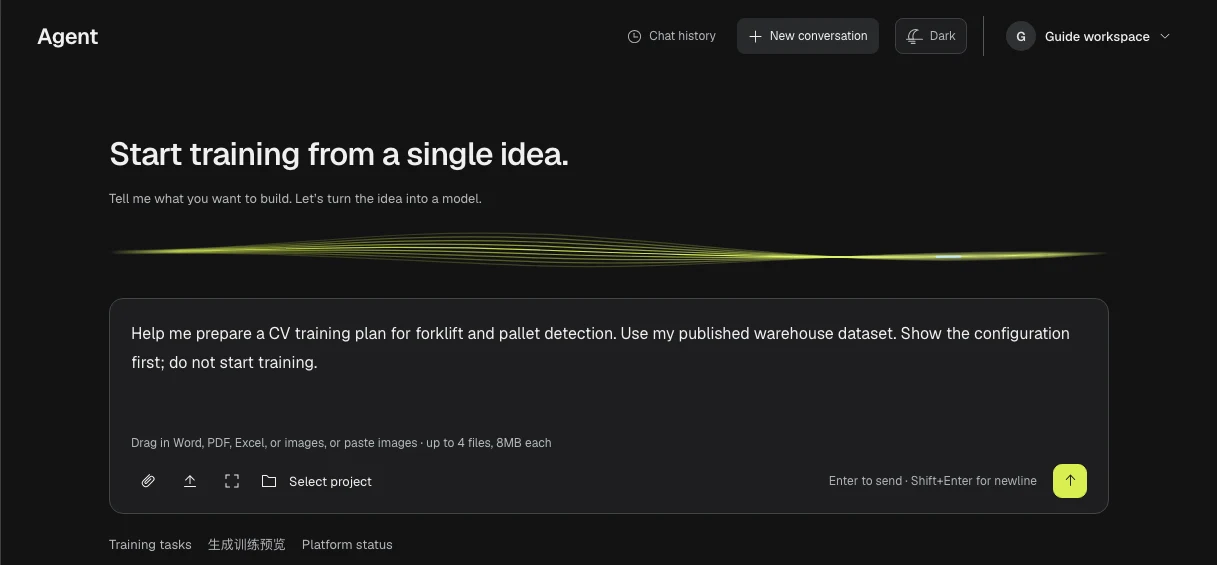
Help me prepare a CV training plan for forklift and pallet detection. Use my published warehouse dataset. Show the configuration first; do not start training.
 Open full-size image
For a useful follow-up, specify what to change: “Keep the dataset version. Change the target classes to forklift only, and show the revised configuration.”
Add reference material
Use the attachment control or drag files into the input area. The current input accepts Word, PDF, Excel and images, and supports pasting images; it shows a limit of four files, 8 MB each. Check the limit displayed in your session before uploading.
Add a sentence explaining each file’s purpose. A document may describe requirements, while an image may illustrate an object class. Attaching material to a conversation is separate from importing and publishing a training dataset. Follow the data import and annotation guides for that workflow.
Send, review and confirm
Press Enter to send, or Shift+Enter for a newline. Read the response and answer any questions about missing resources or settings.
If Agent presents a configuration or task confirmation, check the project, dataset version, model, parameters and compute or cost information shown before approving. Ask for corrections if they differ from your intent. A request for advice does not establish that a training job has run.
After a task is submitted, use its task ID or link to inspect the actual status in the training or evaluation area. Wait for the saved result before treating the work as complete.
Continue an existing task
Reopen the conversation from Chat history and provide the relevant task ID when asking about a run. Keep related follow-ups in the same discussion; start a new conversation when changing projects or goals.
If the assistant is unavailable or the response stops, check for an existing submitted task before resending. Record the error and task or conversation reference, then use troubleshooting if it continues. Do not send passwords or access tokens as context.